After logging into your ManagedByQ account as a super-admin, click your name or picture in the top right corner to see the following options:
- Account Settings
- Billing
- Refer a Friend
- Rate ManagedByQ
- Log out
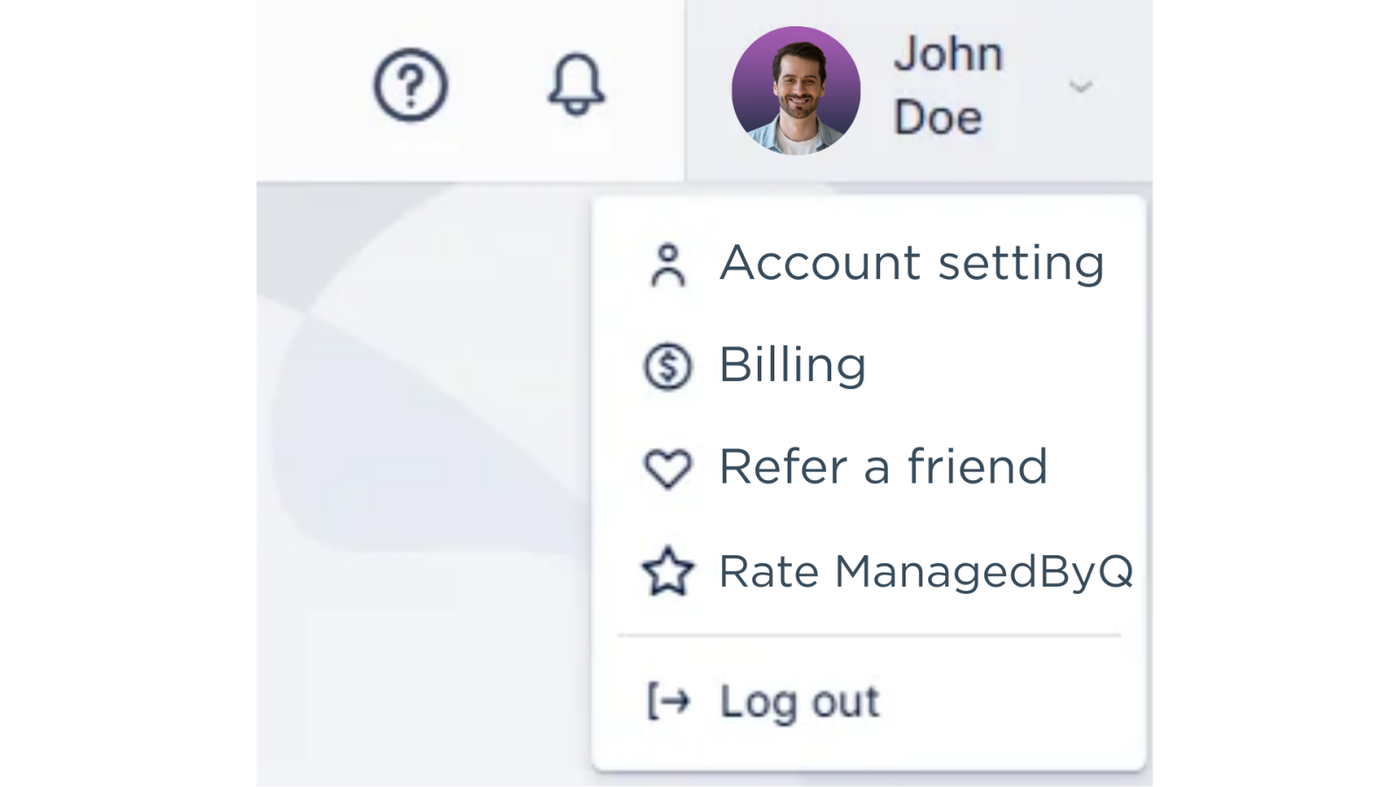
The options available in the screenshot above vary based on the user role of the person logging into ManagedByQ. Similarly, the options that appear when you click on Account Settings may vary:
Personal Info (available to all users)
In this section, you can modify your First Name, Last Name, Email, and Time Zone. You can upload your profile picture by clicking on the photo field or dragging a photo into the area. Always click “Save Changes” at the bottom of the screen after updating your Personal Info settings.

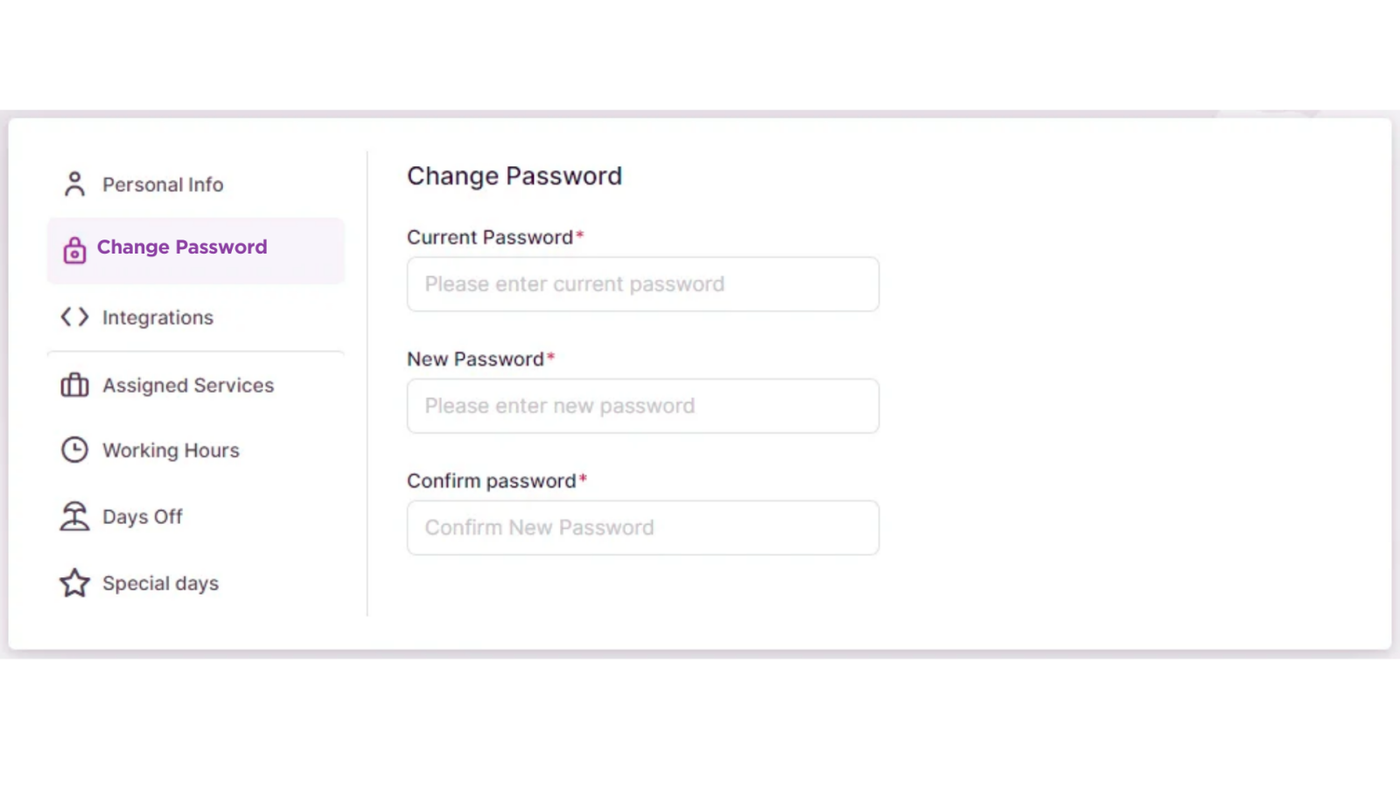
Change Password (available to all users)
In this section, you can update the password you initially set during sign-up. Enter your current password, then your new password, and confirm the new password by entering it again.
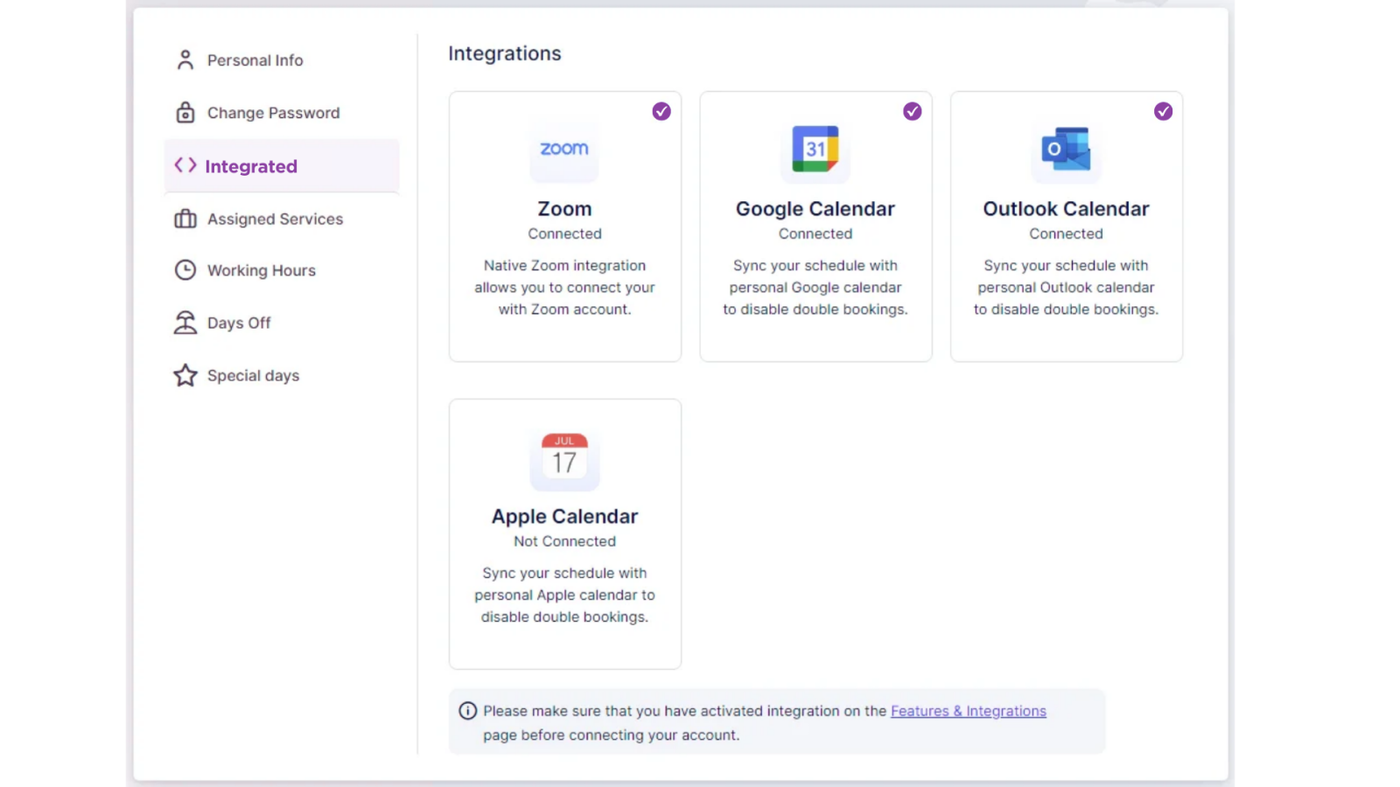
Integrations (available to all users)
In this section, you can connect your own Zoom, Google Calendar, Apple Calendar, and Outlook Calendar with your ManagedByQ account. Other users will also have this option if the admin has activated these integrations on the Features and Integrations page.
Assigned Services (available to admins or users with custom roles)
This section allows admins or users with custom roles to enable the services they are assigned to as employees.
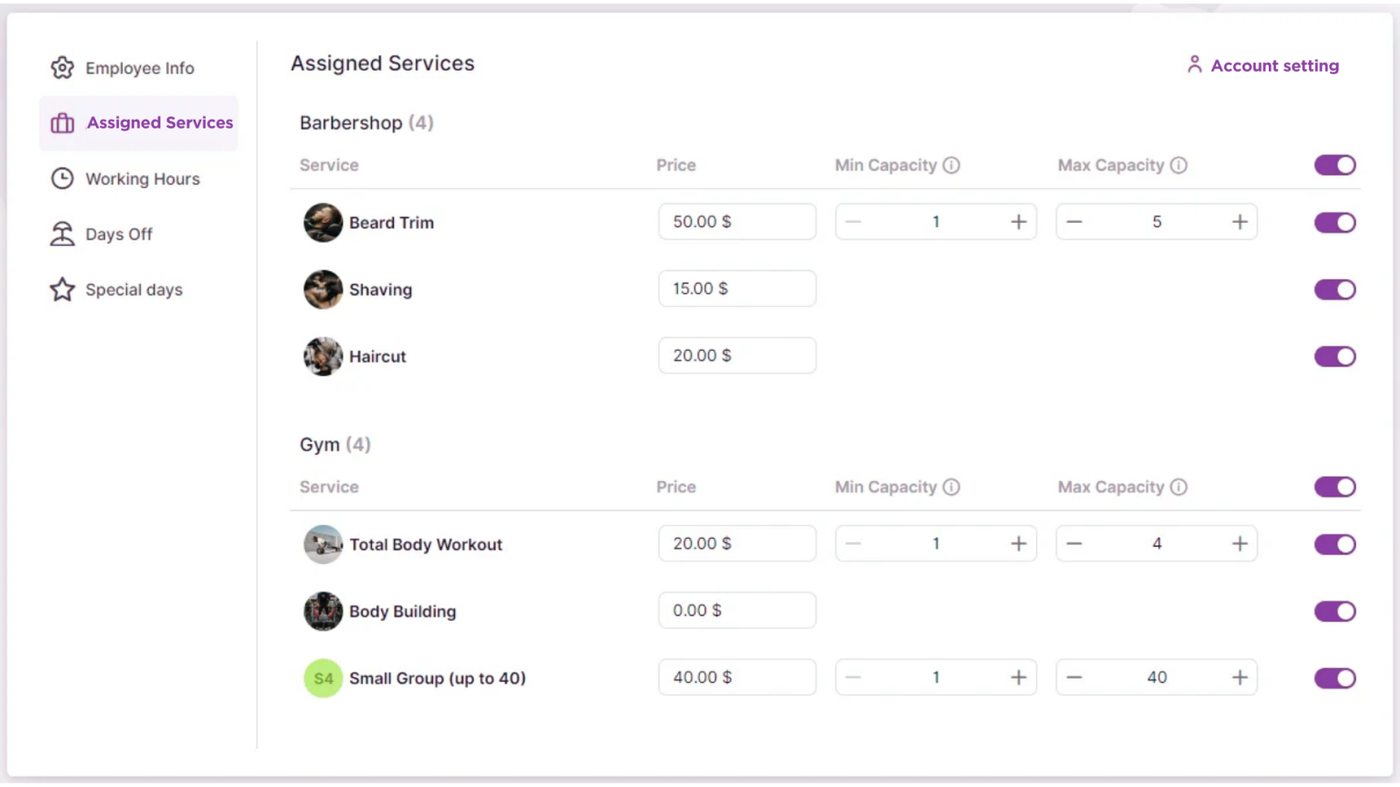
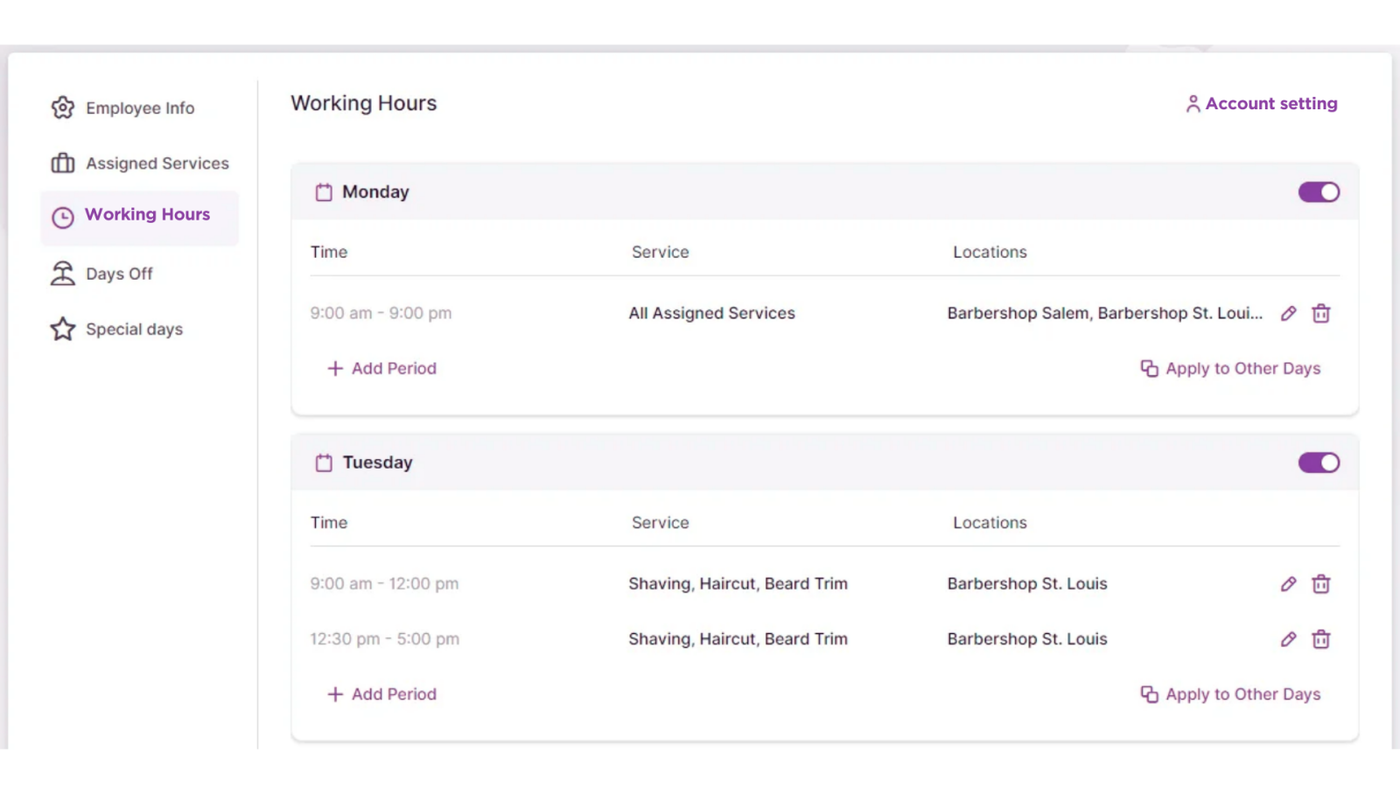
Working Hours (available to admins or users with custom roles)
Here, the working hours for your account can be configured.
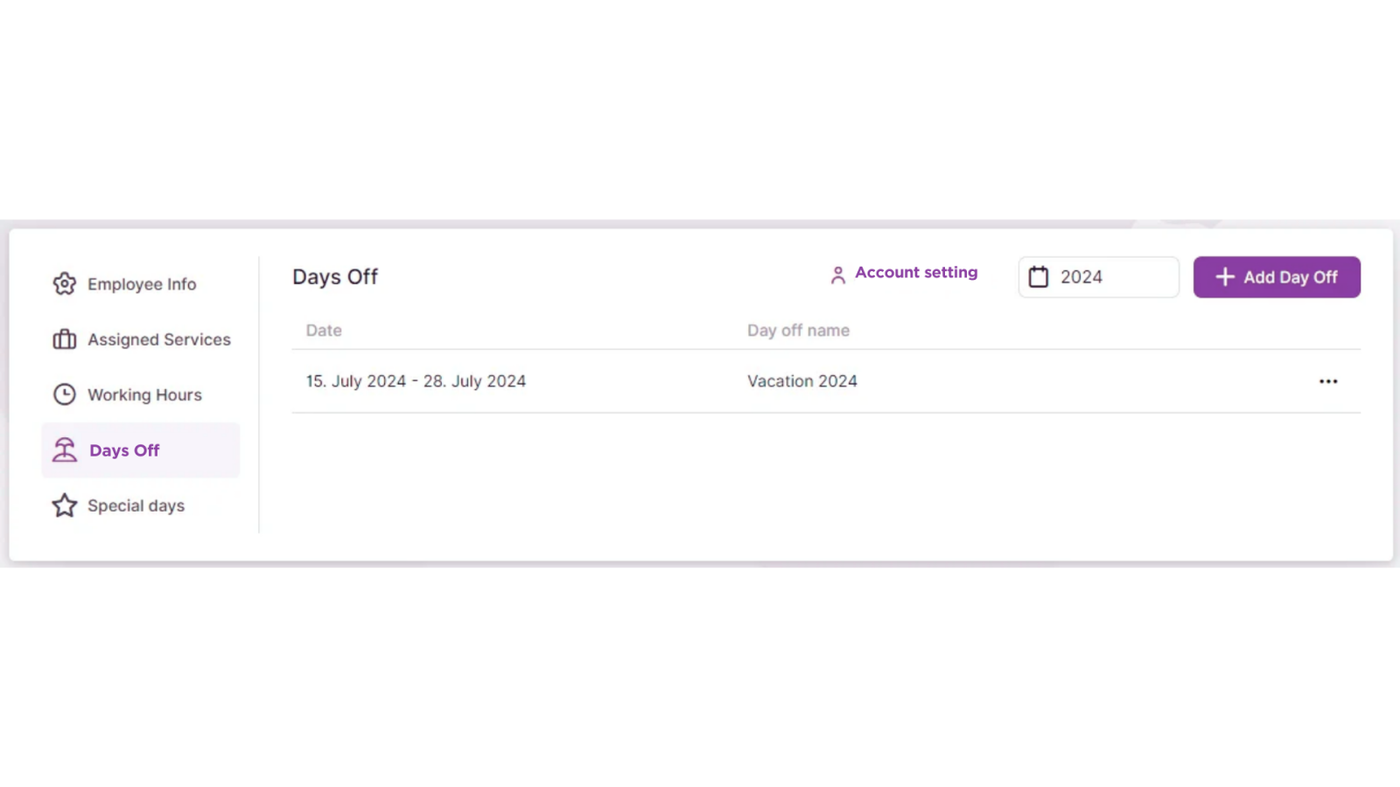
Days Off (available to admins or users with custom roles)
Configure non-working days for your account in this section.
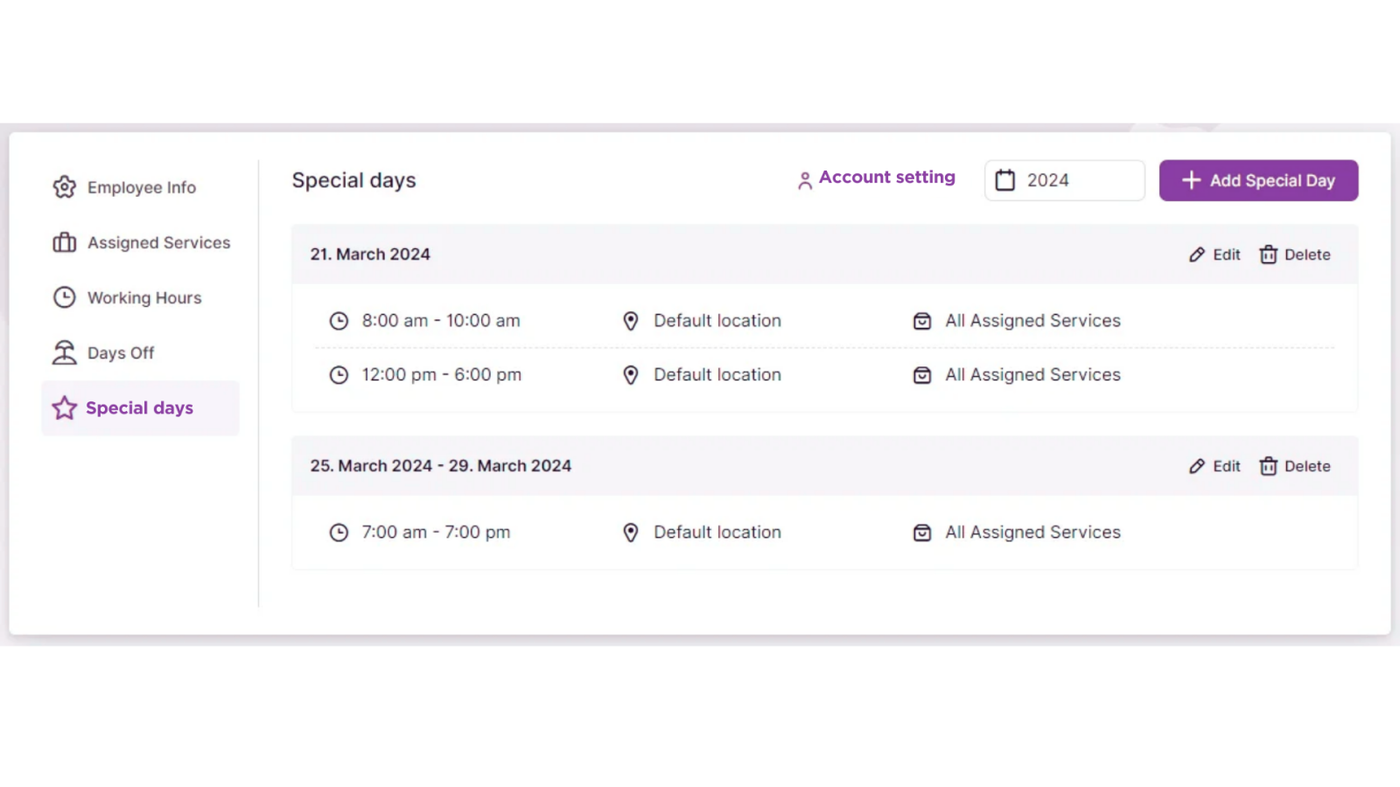
Special Days (available to admins or users with custom roles)
If enabled in ManagedByQ's Features & Integrations section, this option appears in Account Settings. Here, you can configure special working days that do not follow the standard Working Hours.